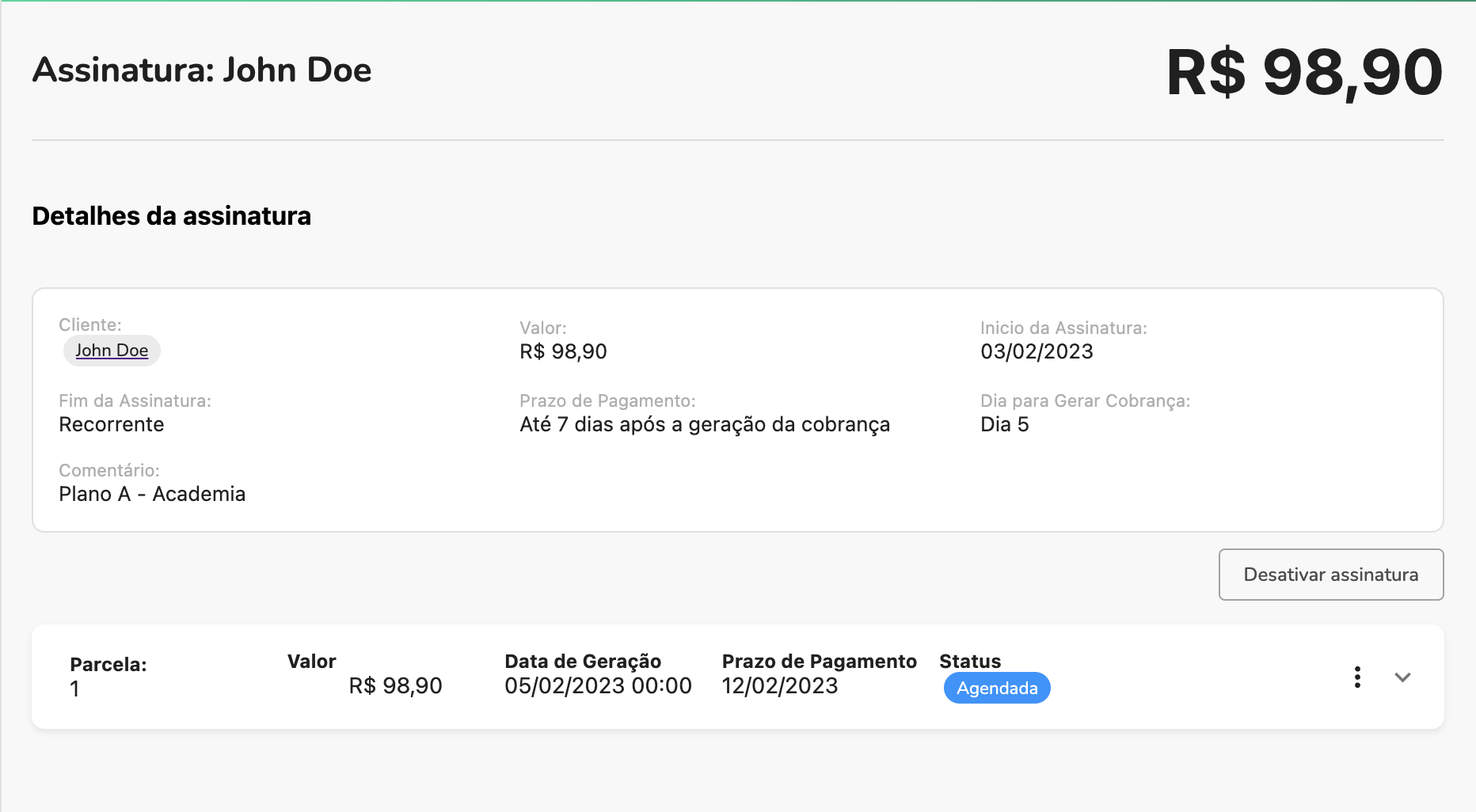
How to create a Subscription?
In this documentation we explain, step by step, how to create a Subscription.
Creating your first subscription
To create your first Subscription, follow these steps:
- Go to our platform https://app.woovi.com/login
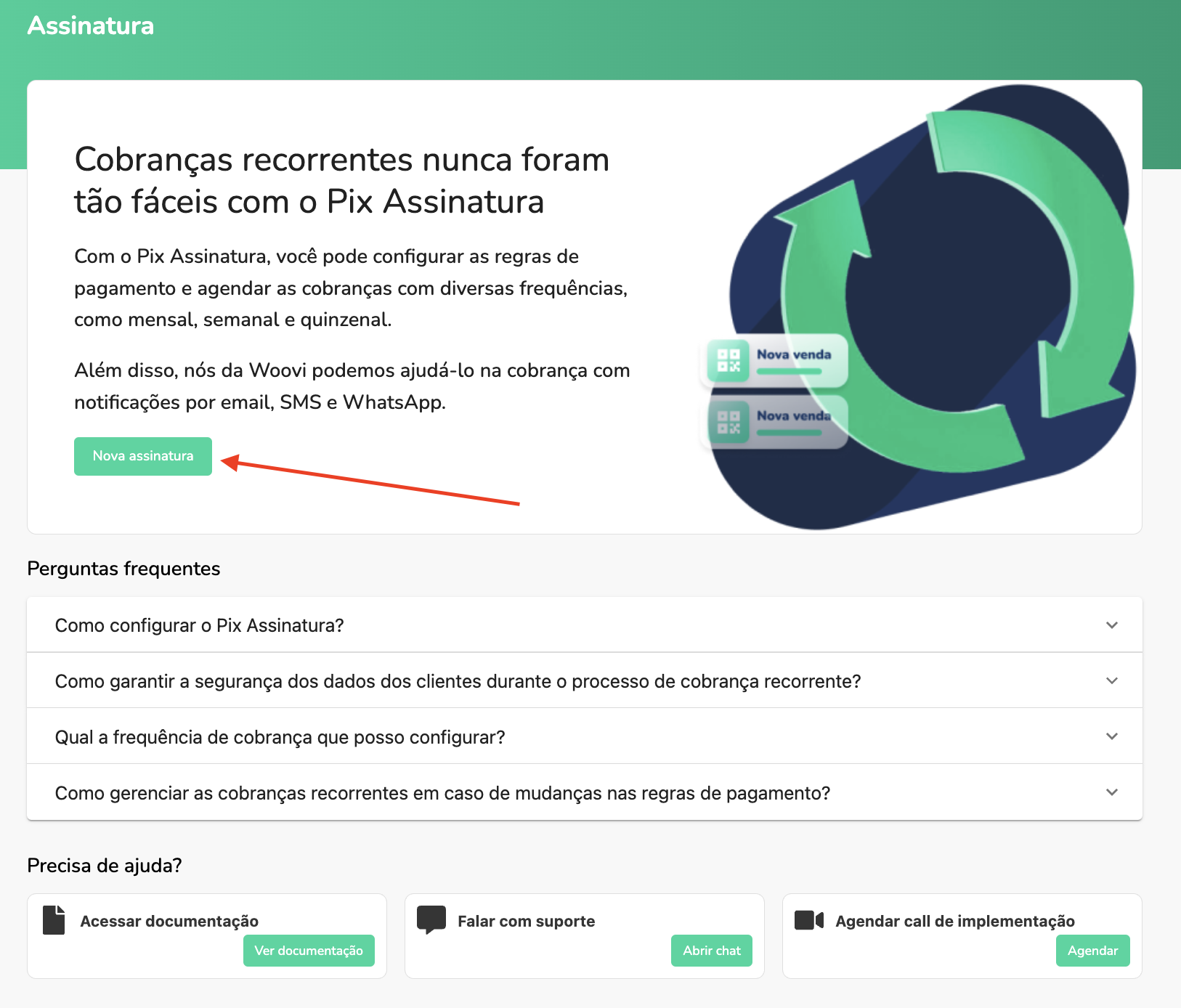
- Go to Assinaturas (Subscriptions) in the sidebar
- You will see our tutorial; click the Nova Assinatura (New Subscription) button to open the form and create your first Subscription
Creating new subscriptions
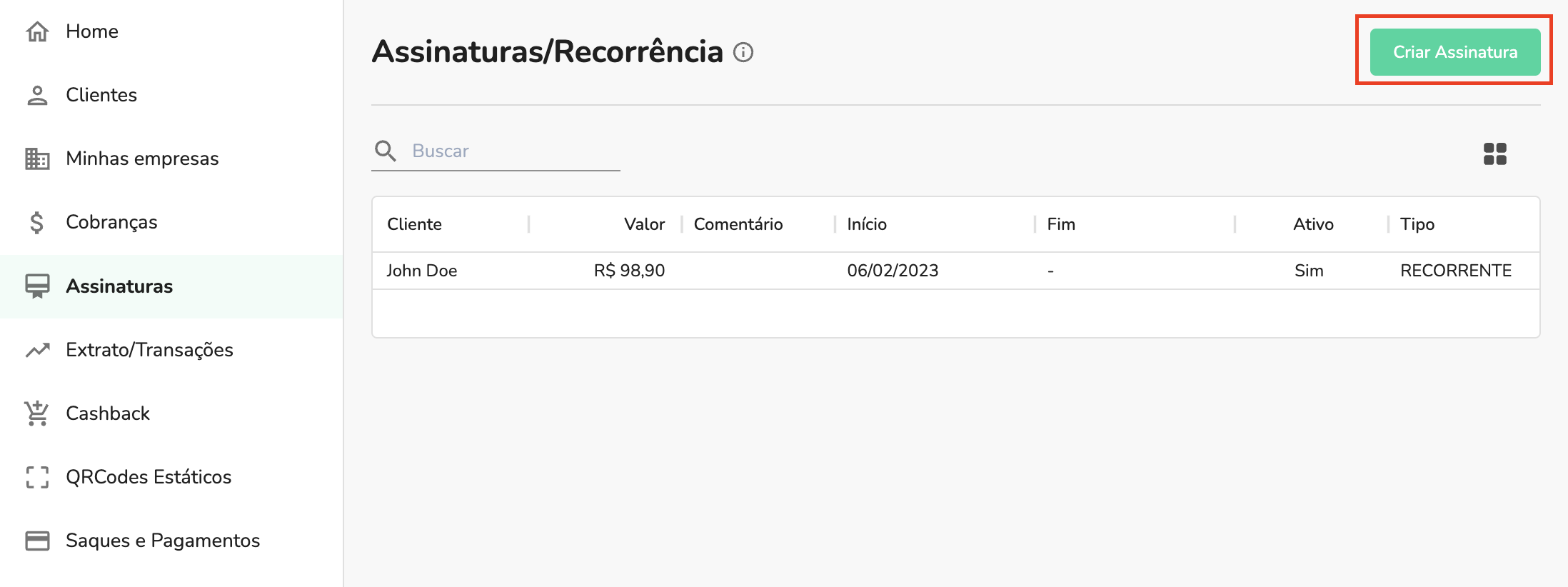
If you have already created a Subscription before, the list of subscriptions will be shown.
To create a new one, click the Criar Assinatura (Create Subscription) button.
Form
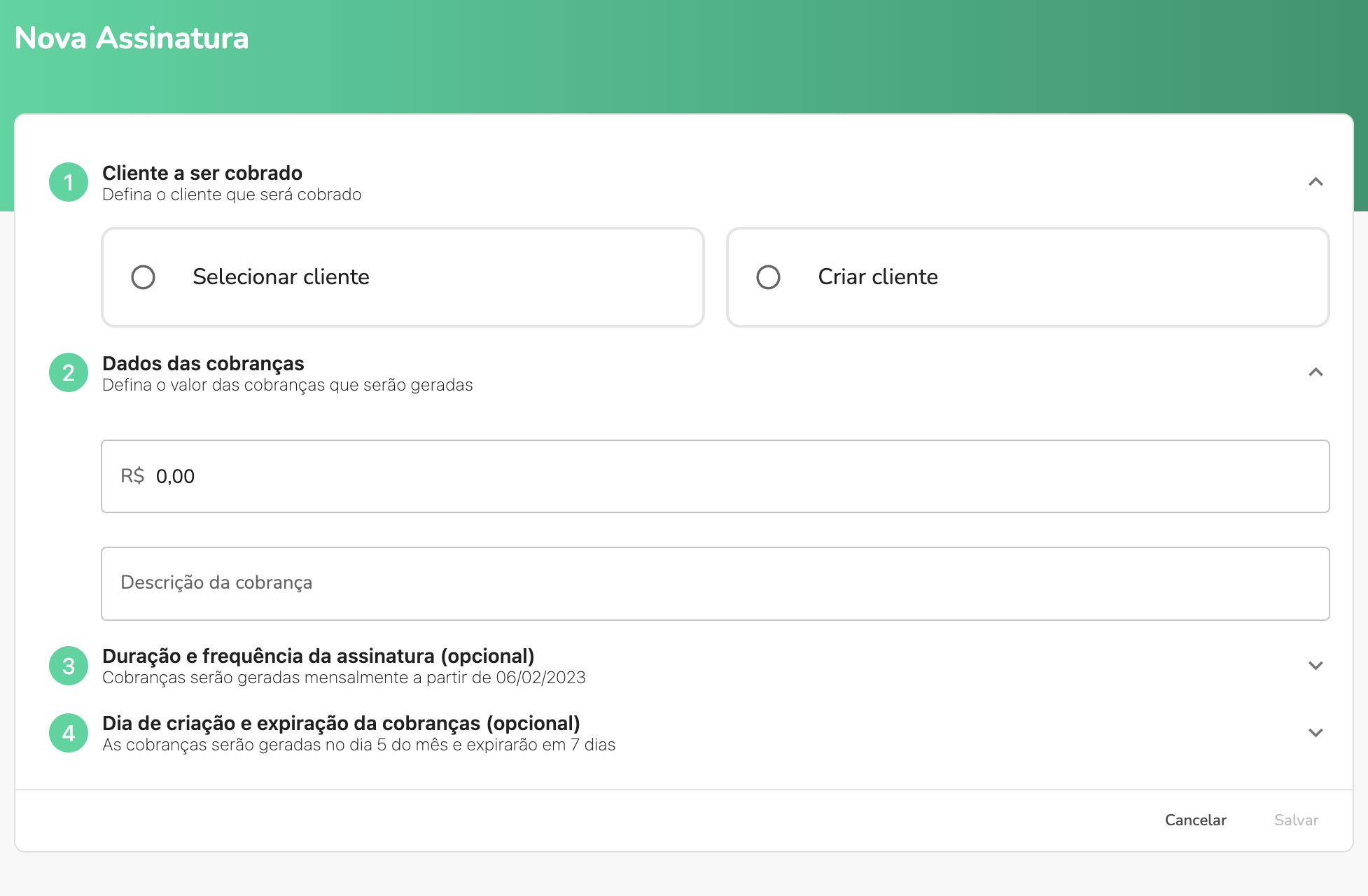
You will then see our form for creating Subscriptions.
Below, we explain each step of this form and what each field means.
Step 1: Customer to be charged
A customer is required to create a Subscription. You can add one by:
- Choosing a customer from your existing customer base
- Creating a new customer

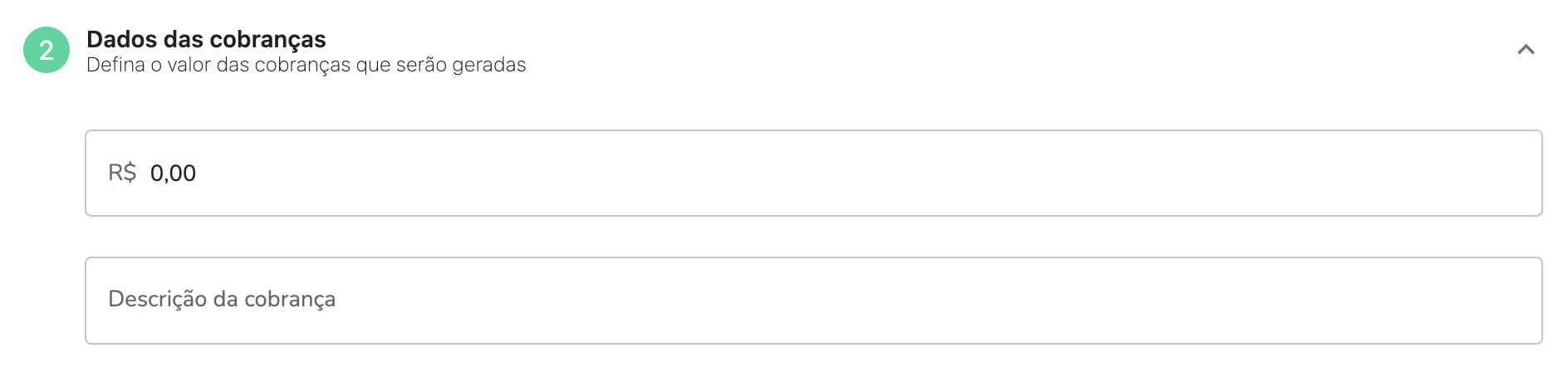
Step 2: Charge data
In this step you configure how the Subscription charges will be generated:
| Field | Description | Example |
|---|---|---|
| Valor (Amount) | Amount to be charged | R$ 98,90 |
| Comentário (optional) | Comment that will appear on the QR Code at the time of payment | Plano A - Academia |
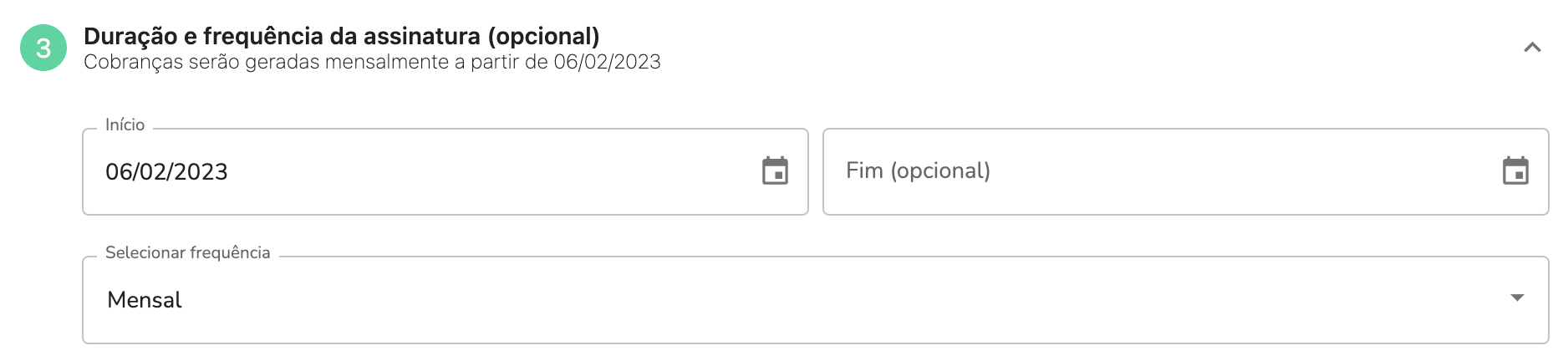
Step 3: Subscription duration and frequency (optional)
In this step you configure the duration and frequency of the Subscription.
A Subscription may or may not have an end date.
- If it has one: all installments up to the end date will be scheduled, and the charges will be generated according to their dates.
- If it does not: one charge will be generated and the next one scheduled accordingly; these Subscriptions only end if they are deactivated.
| Field | Default | Description | Example |
|---|---|---|---|
| Início (Start) | Current day | Subscription start date | 06/02/2023 |
| Fim (End, optional) | Subscription end date | 25/12/2024 | |
| Frequência | Mensal (Monthly) | Subscription frequency | Mensal |
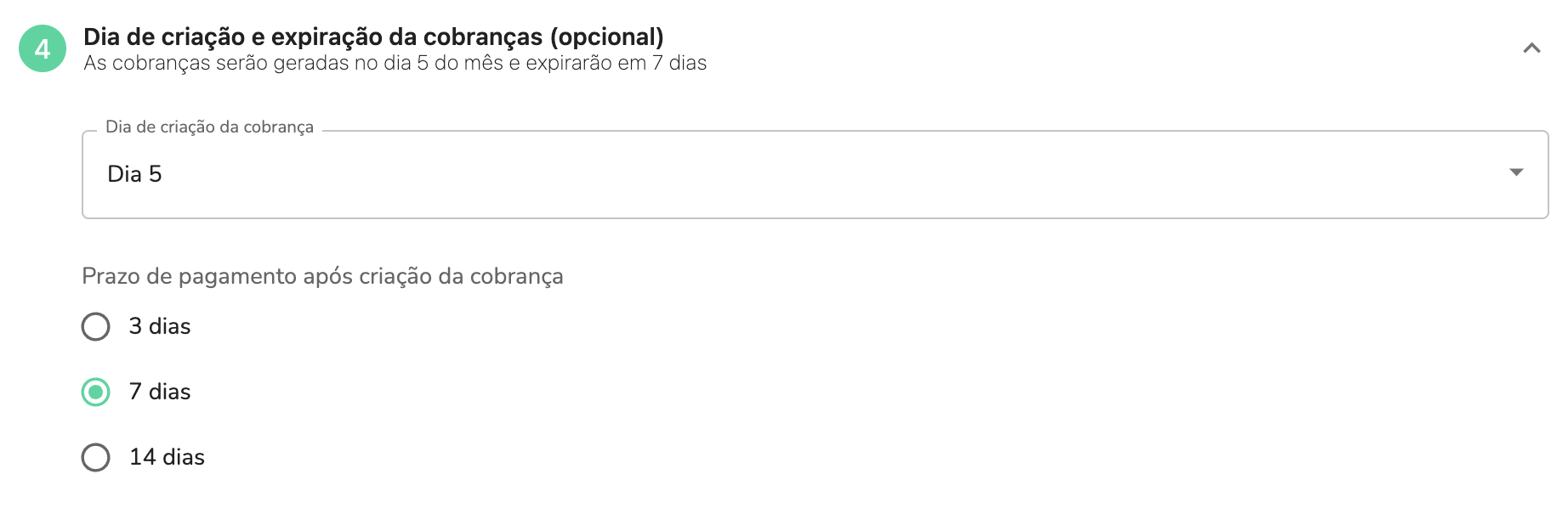
Step 4: Charge creation day and expiration (optional)
In this step you configure the creation day and the payment deadline of the charges.
| Field | Default | Description | Example |
|---|---|---|---|
| Dia de criação (Creation day) | Day 5 | Day of the month on which the charges will be generated | Dia 20 |
| Prazo de pagamento (Payment deadline) | 7 days | Time the customer has to pay after the charge is generated | 3 dias |
Step 5: Save
After completing all the previous steps, just click the Salvar (Save) button and you will be redirected to the Subscription details: