Integrating Woovi with WooCommerce Subscriptions
Summary
This document details the steps required to use Woovi together with the WooCommerce Subscriptions plugin on your WooCommerce-based e-Commerce platform. The Woovi platform reconciles your Bank and your e-Commerce in real time.
After configuring the Woovi plugin, you will be able to charge customers on a recurring basis with Pix QR Codes, send Payment Links, and manage charges, including refunds.
Note: This document assumes you already have an active WooCommerce environment and WooCommerce Subscriptions installed.
1. Install and configure the Woovi Plugin
Follow our documentation to install and configure the Woovi Plugin: Integrating Woovi with WooCommerce
2. Activate the WooCommerce Subscriptions plugin
Go to Plugins in the sidebar, find the WooCommerce Subscriptions plugin and click Activate.
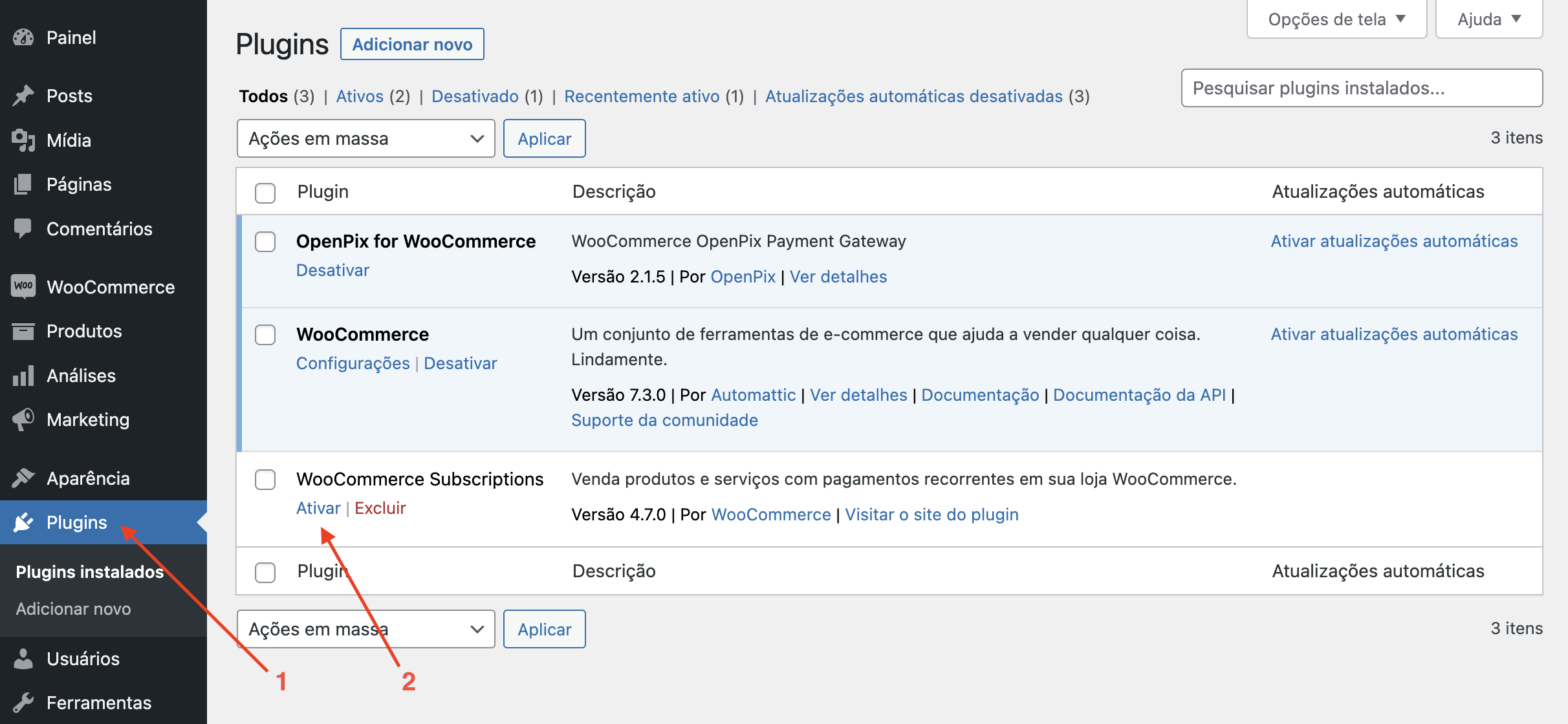
Plugins -> WooCommerce Subscriptions -> Activate
3. Configure WooCommerce Subscriptions to accept Pix payments
3.1. Opening the settings
On the same screen, click Settings on the WooCommerce Subscriptions plugin or, in the sidebar, go to WooCommerce, click Settings and go to Subscriptions in the top menu.
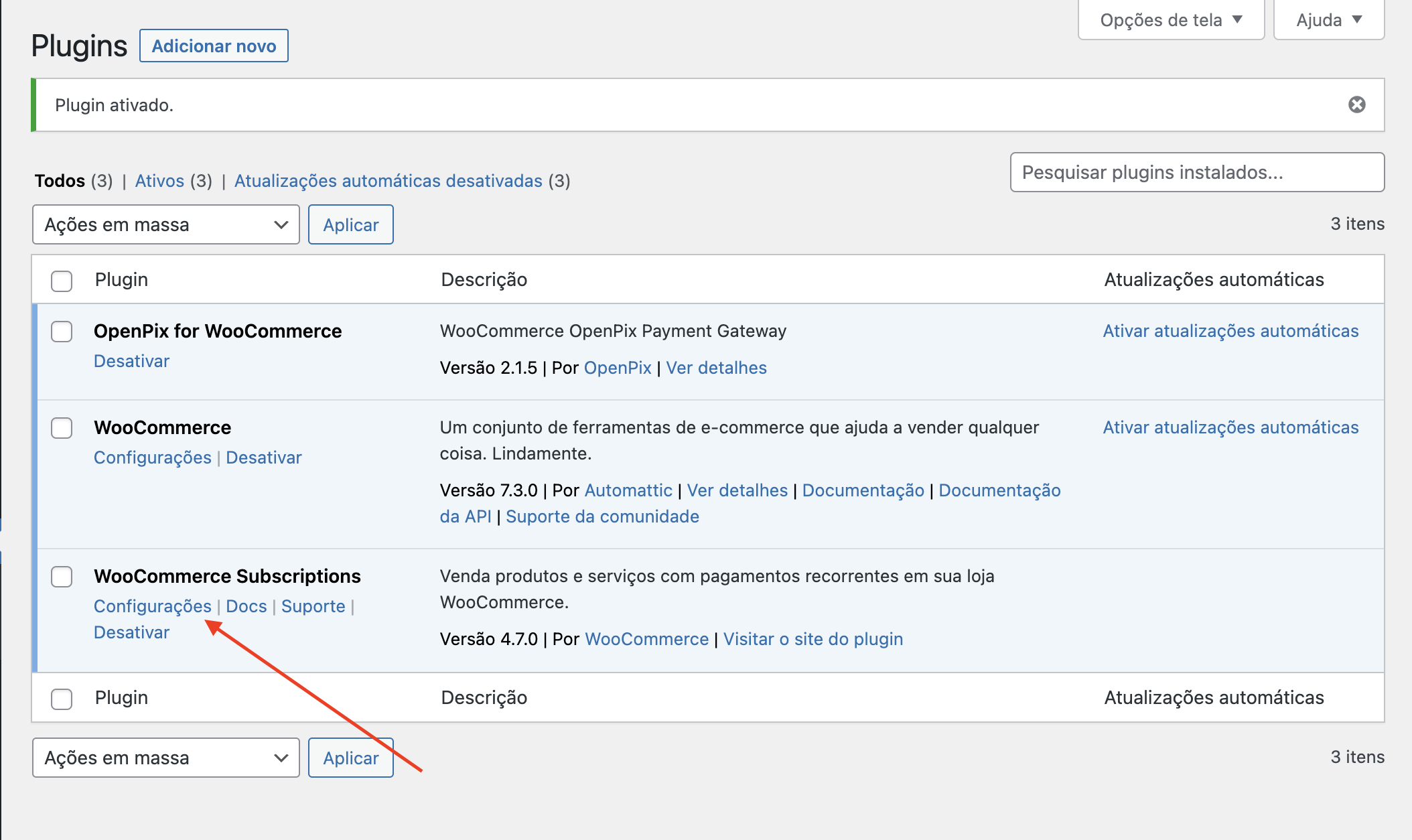
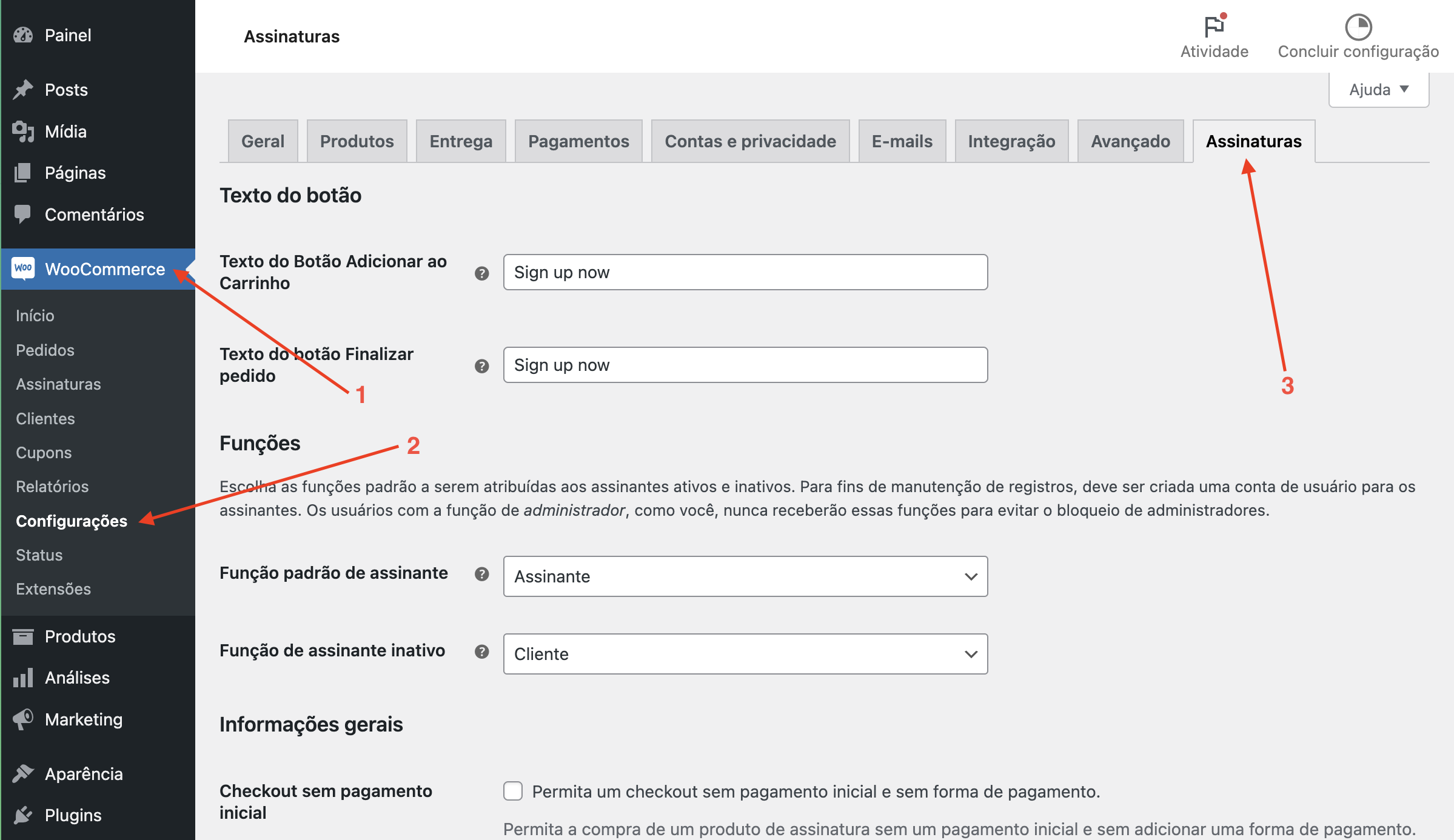
WooCommerce -> Settings -> Subscriptions
3.2. Enabling manual renewals
In the Subscriptions menu, scroll down to the Renewals section and enable the Accept Manual Renewals option
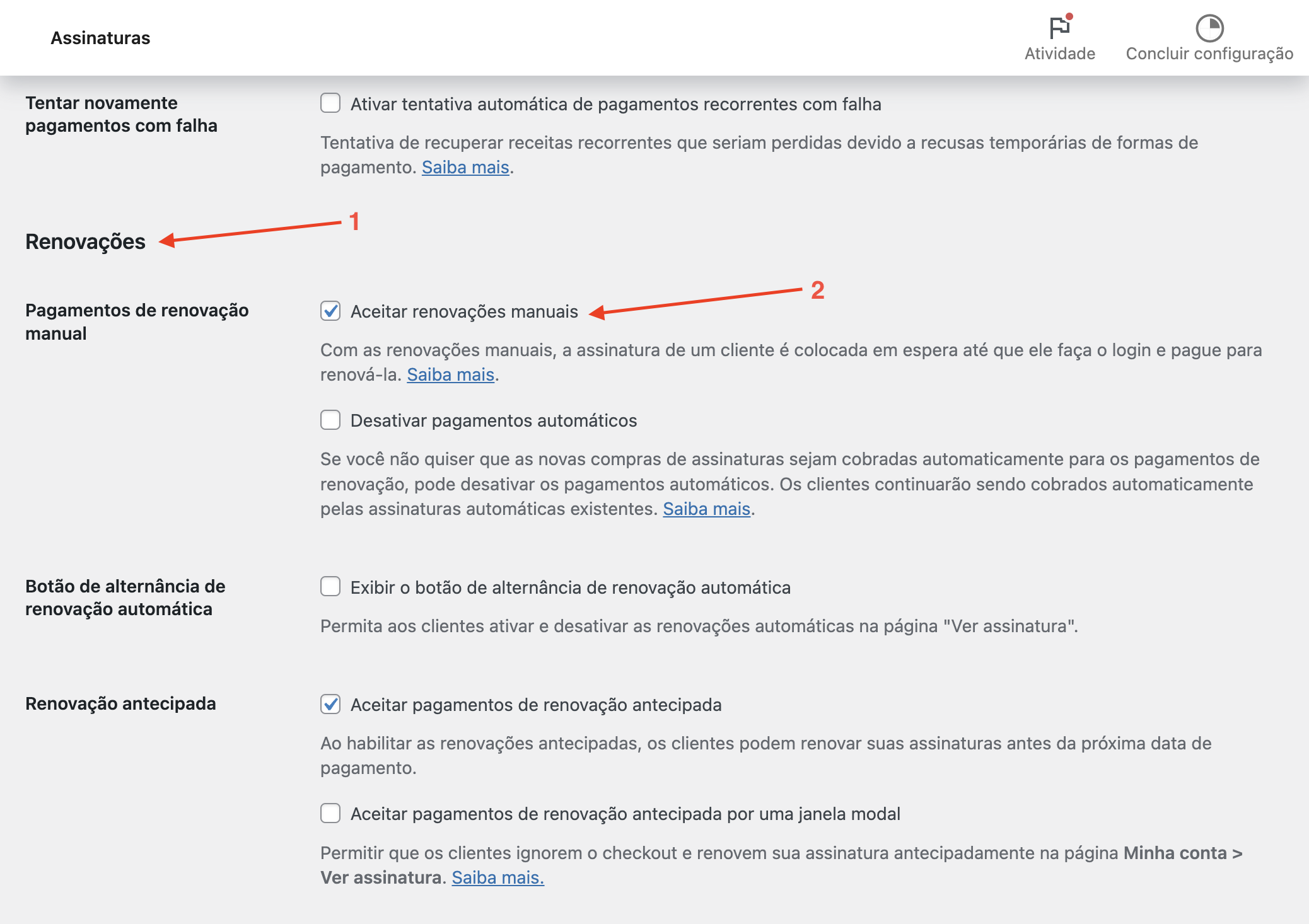
Subscriptions -> Renewals -> Accept Manual Renewals
4. Create a new subscription
To create a new subscription, go to Products in the sidebar and click Add New.
Add the subscription information, then scroll down to the Product data section and select Simple subscription.
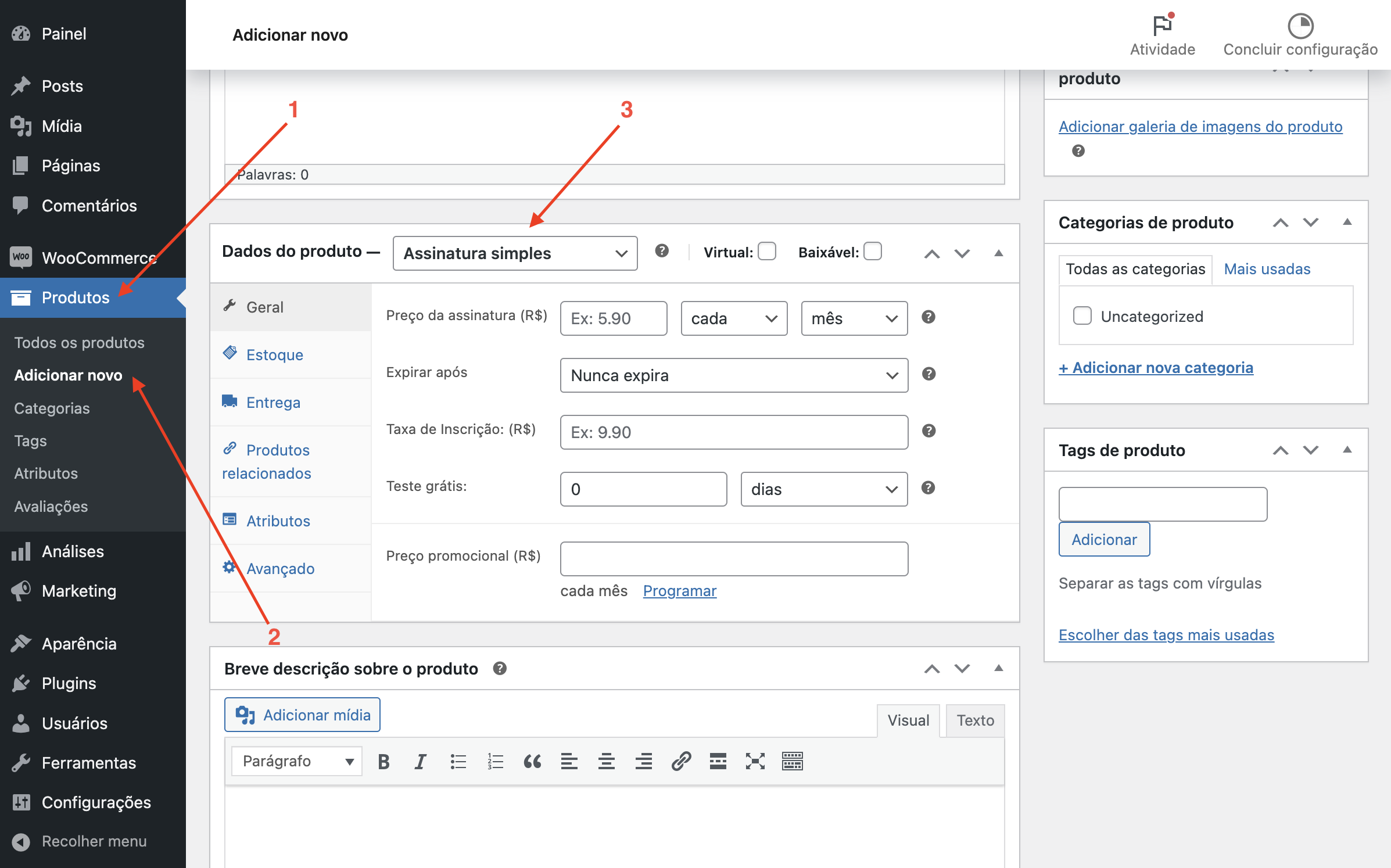
Products -> Add New -> Product data -> Simple subscription