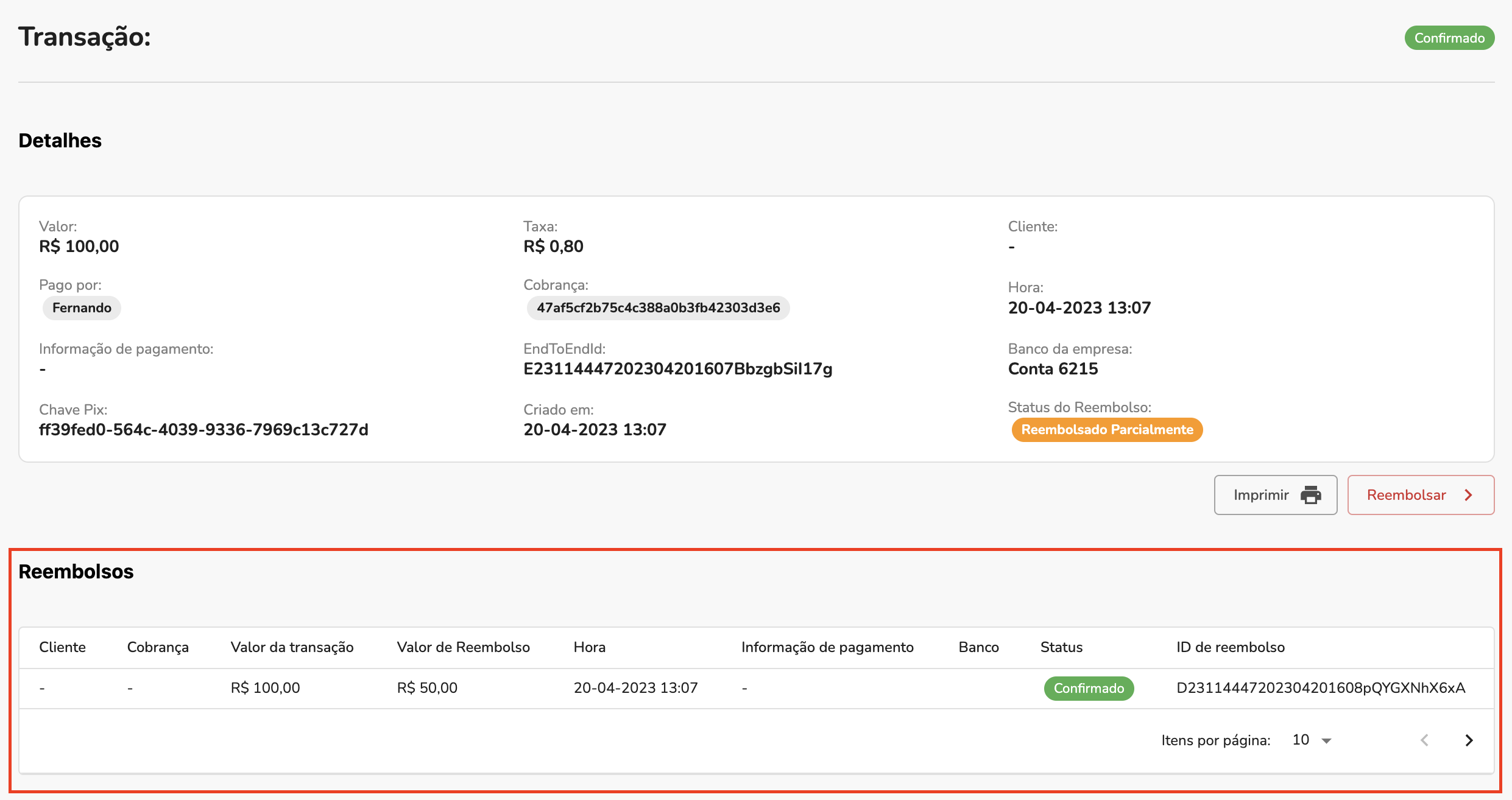
How to refund an order in WooCommerce
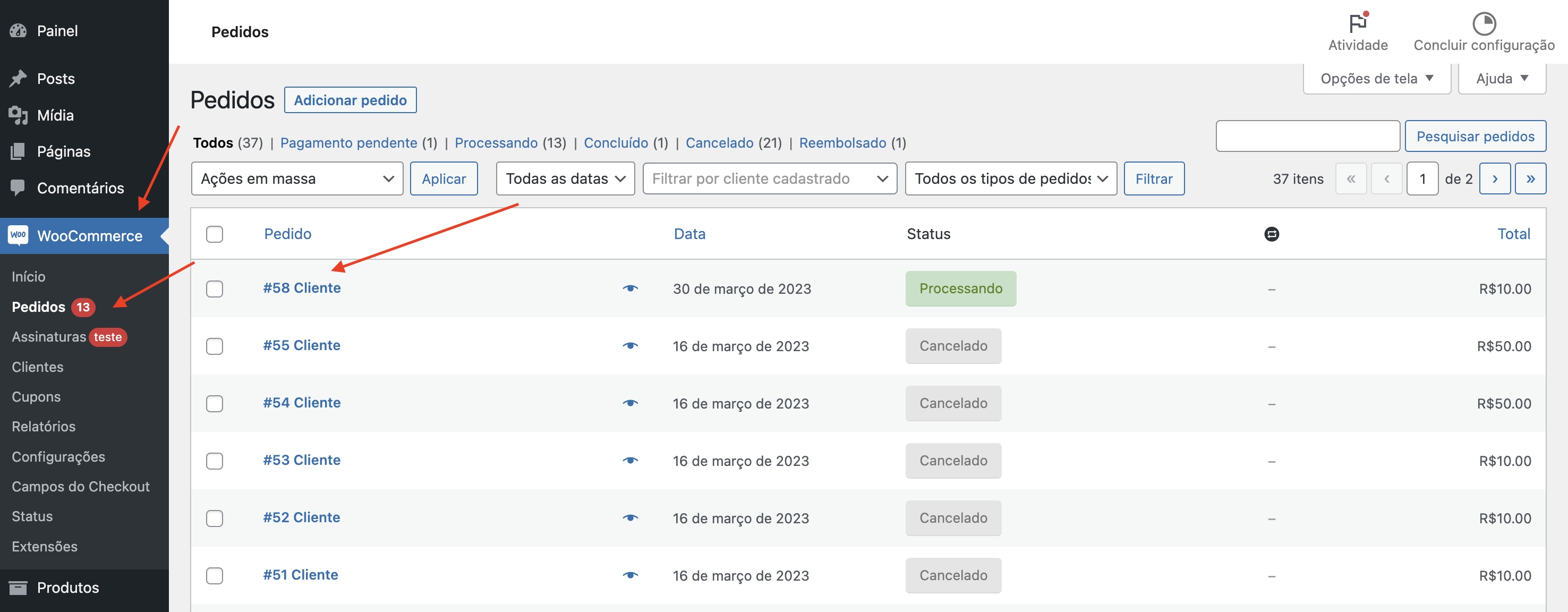
1. Open the order details
In the side menu, open the order list and then click on an order that has already been paid:
2. Click the refund button
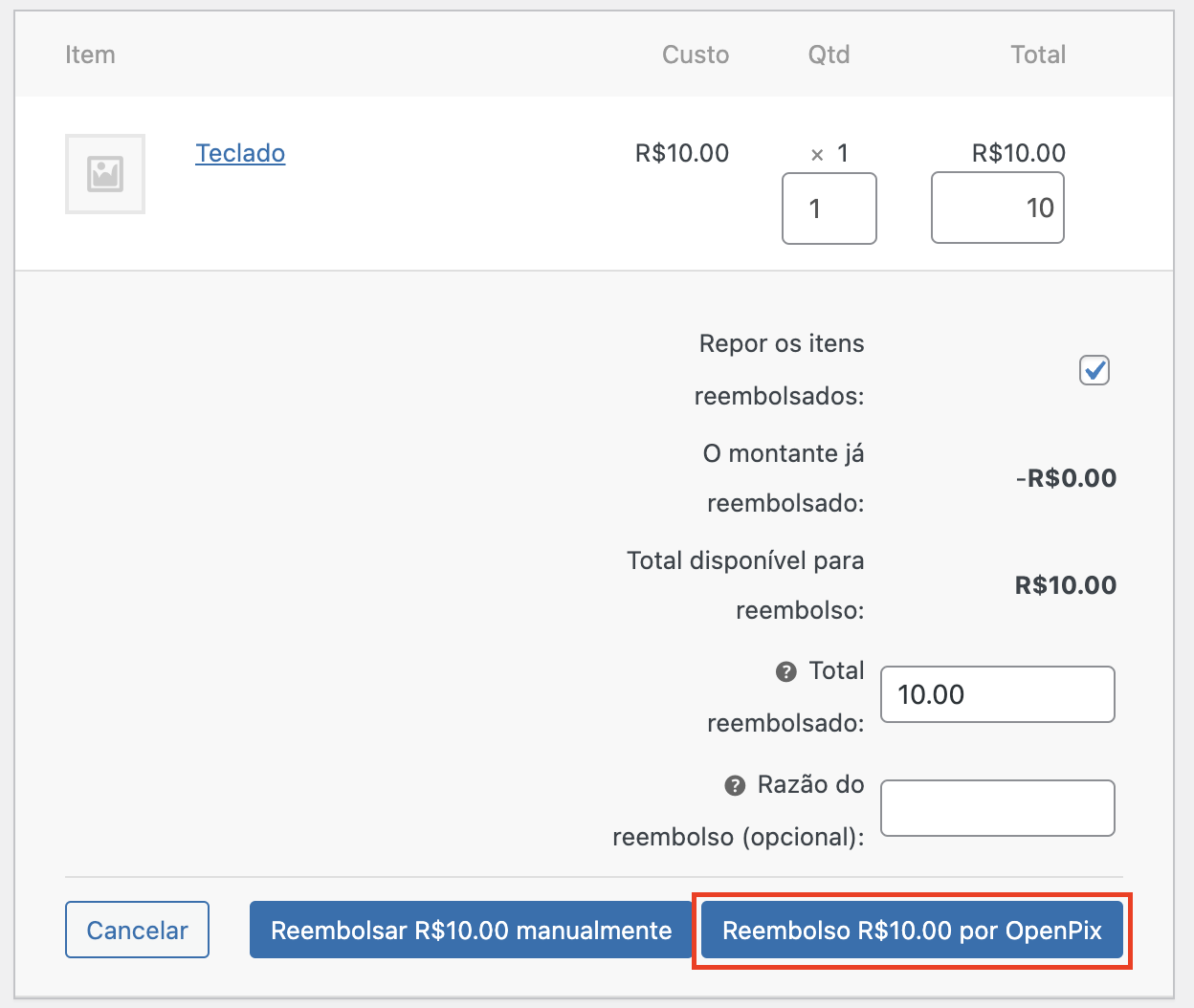
A bit further down the page you will see a section with the order details. Click the Refund button:

3. Fill in the information and confirm the order
In this step you can configure how the refund will be made:
- In the Qty field, choose the quantity of items to be refunded
- Select Restock refunded items if you want the items to return to stock
- In Total you can set the total refund amount. It can be less than the order total, resulting in a partial refund.
- You can also add a comment for the refund in the Reason for refund field.
After completing the information, click the Refund R$ XX,XX via woovi button:
4. View the charge refunds on the platform
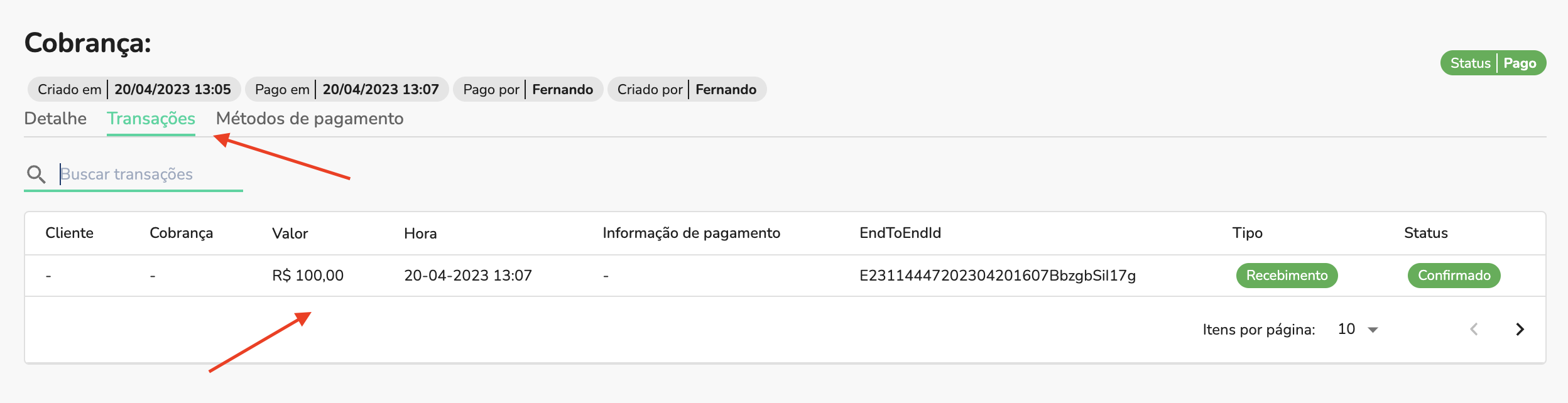
In the charge details on the platform you can see the refund status and events:

You can also view the list of refunds:
open the Transactions tab and select the payment transaction of the charge:
In the transaction details you can view all refunds: