Charge Pix using a Sicoob checking account
Integrating your Sicoob checking account
Summary
This document explains how to connect your company's checking account, held at Sicoob, to Woovi. Once your account is connected to Woovi, you can generate Pix QR Codes and Payment Links, use eCommerce Plugins, access the APIs, and manage and track Pix charges.
In this mode, the Pix amounts paid by your customers are deposited directly into your company's checking account at Sicoob.
This is one of the most common setups on the platform and is used by large companies or companies with high volumes. In this mode there is no need to open a new checking account, since your company's existing checking account at Sicoob is used.
1. Creating a test application
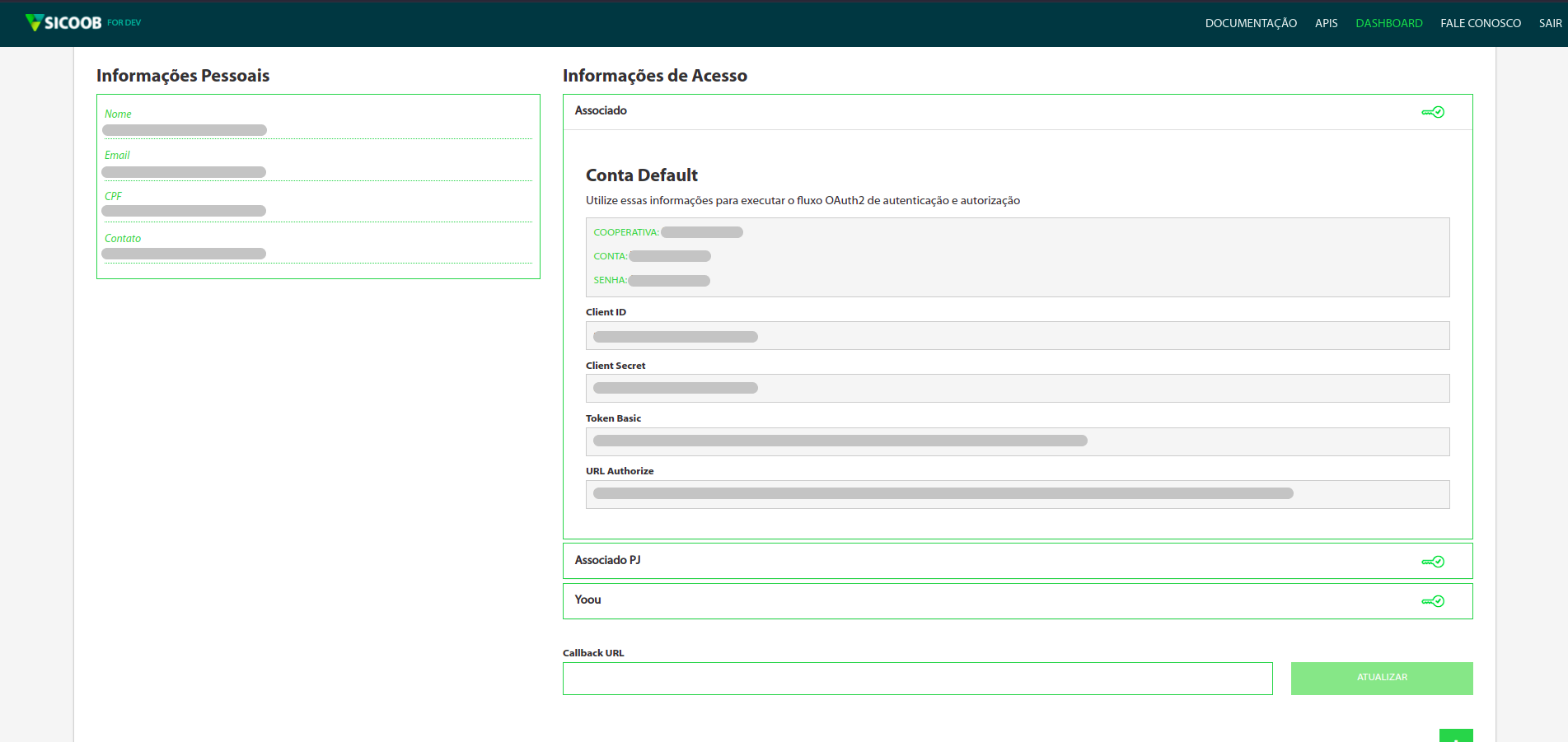
After signing up on the Developers Portal, go to the Dashboard menu, where your Sandbox access credentials will be available. Create your application and provide your URL de Callback (Callback URL).
2. Getting your Sicoob access credentials
Sandbox access credentials are available in the Dashboard menu after you log in to the Developers Portal. There are three access types for the Sicoob APIs: Associado, Associado PJ and Yoou. Find out which authentication type you need for your use case and continue testing.
3. Registering your checking account's Sicoob credentials on the Woovi platform
Once you have received the production credentials for your Sicoob account, just register the Client ID, Client Secret and Developer Api Key.
In the Admin Menu, go to Ajustes (Settings) > Pix. Click Conectar com Conta Corrente (Connect with Checking Account).

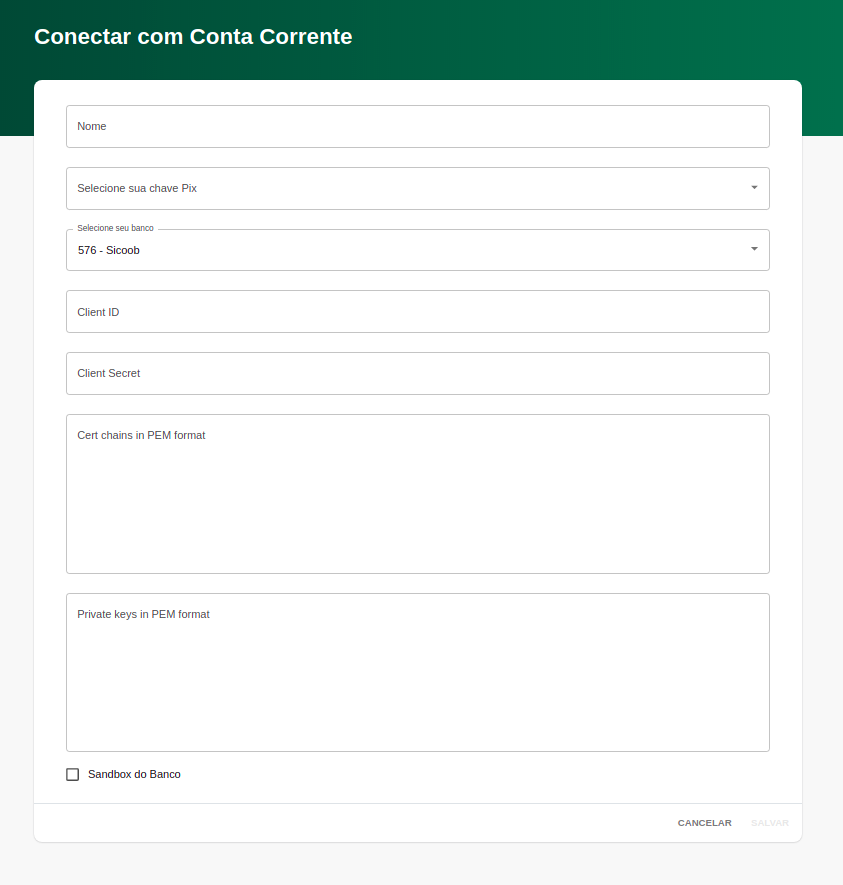
You can register more than one token, or multiple accounts.
Note: once registered, the credentials are encrypted and stored in an environment with an HSM asymmetric key. If the token is lost, this operation must be redone.
4. Testing the Token
After registering the Token on the platform, you can create charges for your customers.