Charge Pix using a Santander checking account
Integrating your Santander checking account
Summary
This document explains how to connect your company's checking account, held at Santander, to Woovi. After connecting your account to Woovi, you can generate Pix QR Codes and Payment Links, use eCommerce Plugins, access APIs, and manage and track Pix charges.
In this mode, the Pix amounts paid by your customers are deposited directly into your company's checking account at Santander
This is one of the most common setups on the platform and is used by large companies or companies with high volumes. In this mode there is no need to open a new checking account, since your company's existing checking account at Santander is used.
1. Getting the Santander access credentials
You can use Santander's development environment (sandbox). To do so, just log in, create your application and access your credentials. With them, you can download the Postman collection or integrate directly from your system to explore the APIs. This information can be found in the technical documentation.
2. Registering your checking account's Santander credentials on the Woovi platform
Once you have received the production credentials for your Santander account, just register the Client ID, Client Secret and Developer Api Key
In the Admin Menu, look for Ajustes (Settings) > Pix. Click Conectar com Conta Corrente (Connect with Checking Account).

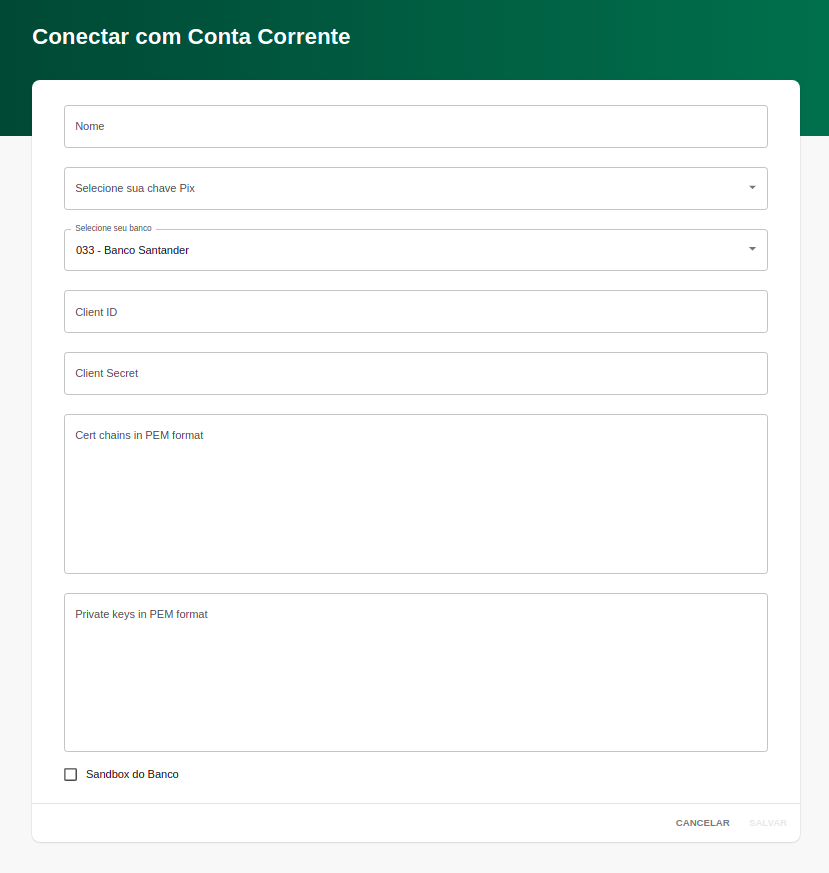
You can register more than one token, or multiple accounts
Note: once registered, the credentials will be encrypted and stored in an environment with an asymmetric HSM key. If the token is lost, this operation will have to be redone.
4. Testing the Token
After registering the Token on the platform, you can create charges for your customers.